Customers
The Customers module is used to manage customer accounts, billing configurations, portal access, and integrations.
Important: Customers must first be connected and synchronized with QuickBooks Online before they can be managed in Kwiqli.
Viewing Customers
-
Click the Customers tab.
-
Review the customer list.
-
Use the Search bar to locate a customer by:
-
Customer name
-
Company name
-
Email address
-
Click View beside a customer to open the account.
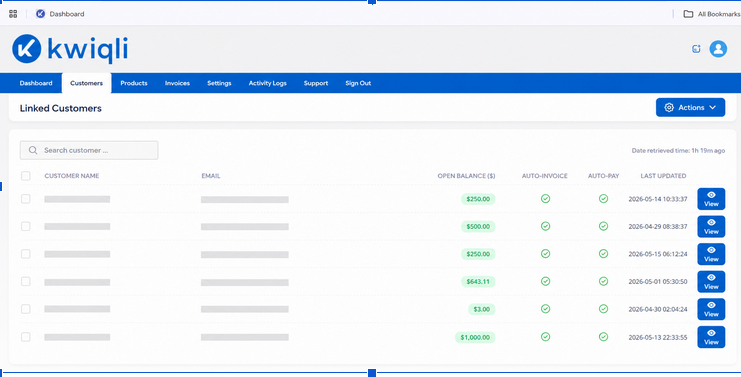
Functions
-
View customer balances
-
Check Auto-Invoice status
-
Check Auto-Pay status
-
Review account updates
Customer Details
-
Open a customer profile.
-
Select the Customer Details tab.
-
Update the following information as needed:
-
Contract Type
-
Contract Start Date
-
Contract End Date
-
Monthly Minimum Commitment
-
Customer Memo
-
Enable or disable the Is Billable toggle.
-
Click Update to save changes.
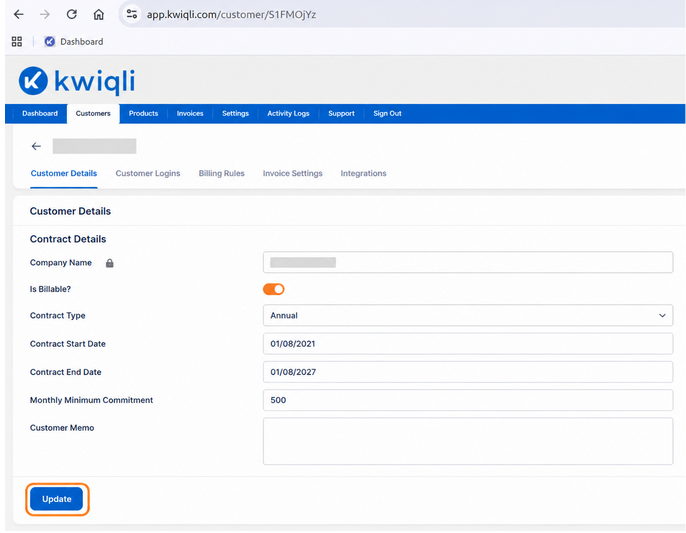
Functions
-
Manage customer billing eligibility
-
Store contract details
-
Add internal account notes
Customer Logins
-
Open a customer profile.
-
Click the Customer Logins tab.
-
To add a portal user:
-
Click Add New Login
-
Enter the customer email
-
Assign the role
-
Save the login
-
To remove access:
-
Click Remove
-
To troubleshoot customer access:
-
Click Impersonate
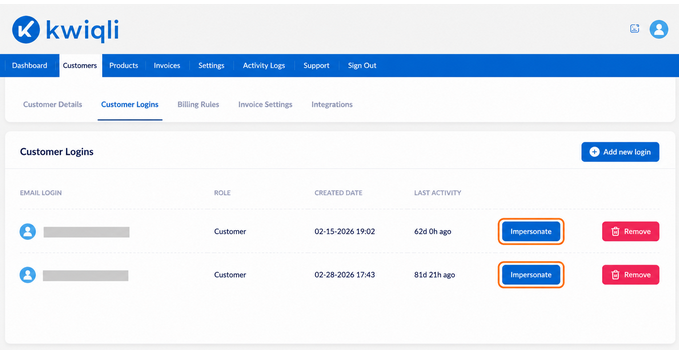
Functions
-
Manage customer portal access
-
Troubleshoot customer accounts
-
Monitor portal activity
Billing Rules
-
Open a customer profile.
-
Select the Billing Rules tab.
-
Click Add New Billing Rule.
-
Configure:
-
Product
-
Pricing Type
-
Tiered Pricing
-
Descriptions
-
Save the billing rule.
-
To edit a rule:
-
Click Edit
-
Update the configuration
-
Save changes
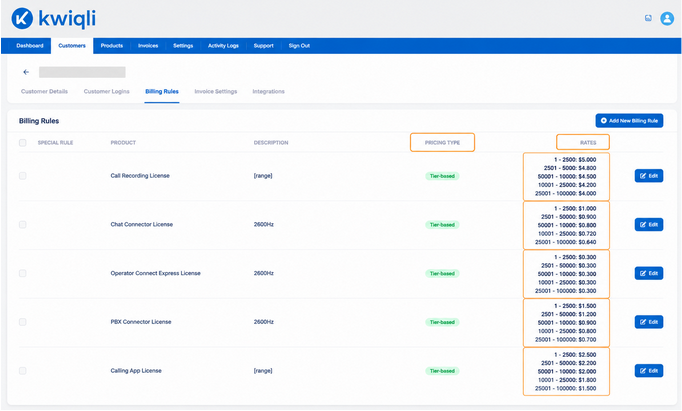
Functions
-
Automate recurring billing
-
Configure tier-based pricing
-
Manage usage billing
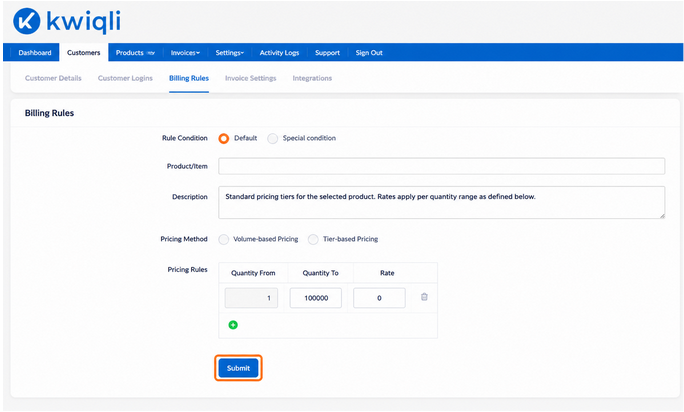
Understanding Billing Rules
A Billing Rule is an automated billing configuration that tells Kwiqli how and when to charge a customer for a product or service.
Billing Rules automatically generate invoice charges based on predefined pricing and billing settings, eliminating the need for manual invoice creation.
Common Uses for Billing Rules
Billing Rules can be used for:
-
Recurring monthly services
-
Usage-based billing
-
Tier-based pricing
-
Minimum monthly commitments
-
Annual or one-time charges
Example
A customer may be billed monthly for:
-
Calling App Licenses
-
Call Recording Licenses
-
Support Services
Tier-Based Pricing Example
|
Quantity Range |
Price Per Unit |
|
1–2500 |
$5.00 |
|
2501–5000 |
$4.80 |
|
5001–10000 |
$4.50 |
How Billing Rules Work
-
Create a Product or Service
-
Assign the Product to a Customer
-
Configure Pricing and Billing Logic
-
Enable Auto-Invoice
-
Kwiqli Automatically Generates Invoice Charges
Benefits of Billing Rules
-
Automates recurring billing
-
Reduces manual invoicing
-
Improves billing accuracy
-
Supports tiered and usage pricing
-
Simplifies customer billing management
Invoice Settings
-
Open a customer profile.
-
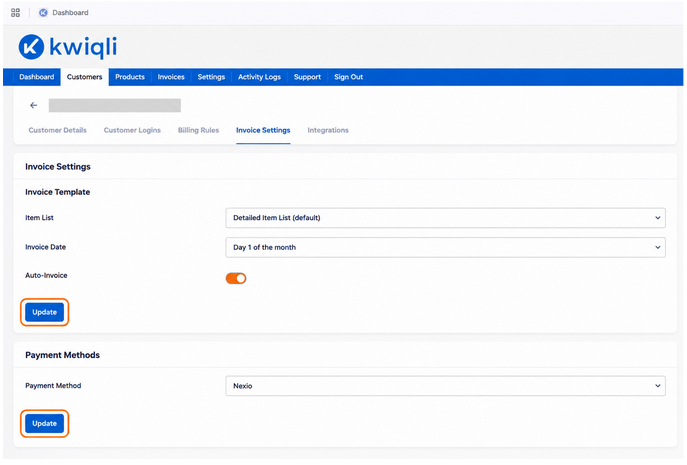
Select the Invoice Settings tab.
-
Configure:
-
Invoice Template
-
Invoice Date
-
Auto-Invoice
-
Payment Method
-
Click Update after making changes.
Functions
-
Configure customer billing schedules
-
Enable automatic invoice generation
-
Assign payment gateways
Customer Integrations
-
Open a customer profile.
-
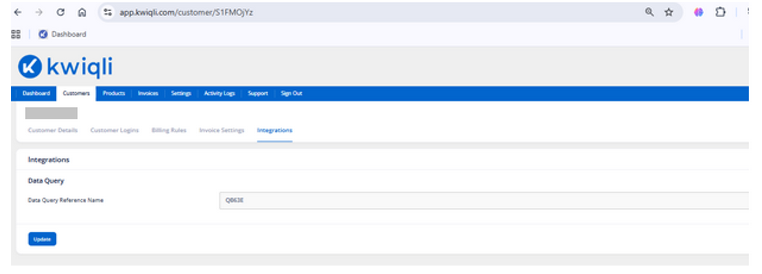
Click the Integrations tab.
-
Enter the customer integration reference or QuickBooks ID.
-
Click Update.
Functions
-
Store QuickBooks customer references
-
Link external systems
-
Configure customer-specific integration