
Settings
The Settings module manages organization-wide system configurations.
Company Settings
Instructions
-
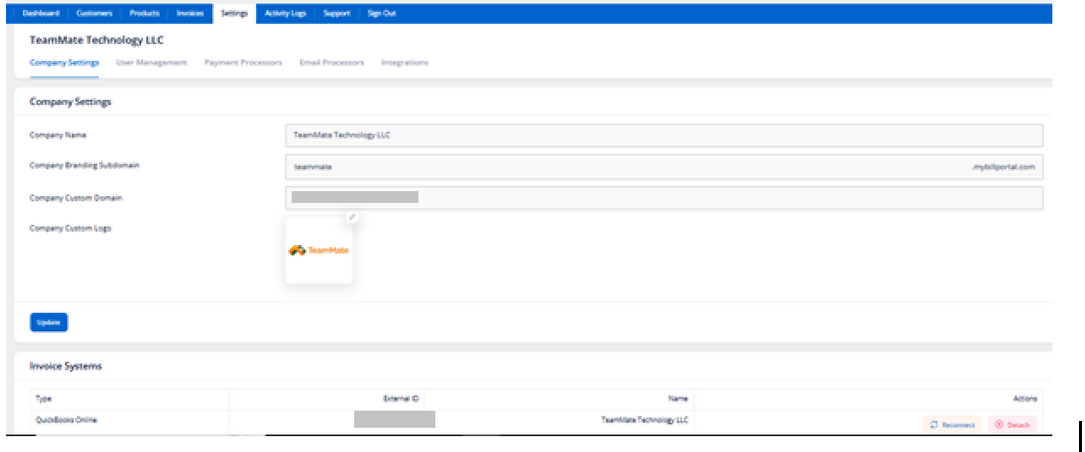
Click Settings.
-
Open Company Settings.
-
Update:
-
Company Name
-
Branding Subdomain
-
Custom Domain
-
Company Logo
Click Update.
Functions
-
Configure white-label branding
-
Customize customer portal appearance
-
Manage QuickBooks integration
User Management
Instructions
-
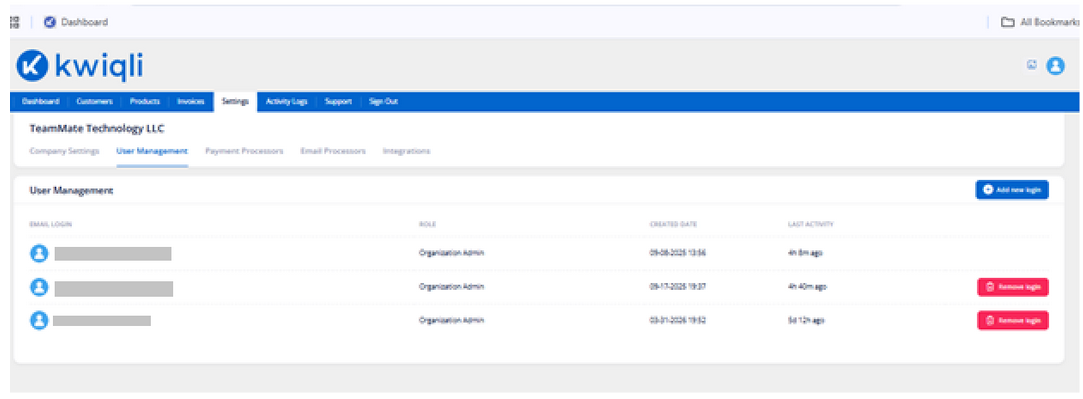
Open the User Management tab.
-
To add a user:
-
Click Add New Login
-
Enter email address
-
Assign role
To remove a user:
-
Click Remove Login
Functions
-
Manage administrator access
-
Assign user permissions
-
Monitor user activity
Payment Processors
Instructions
-
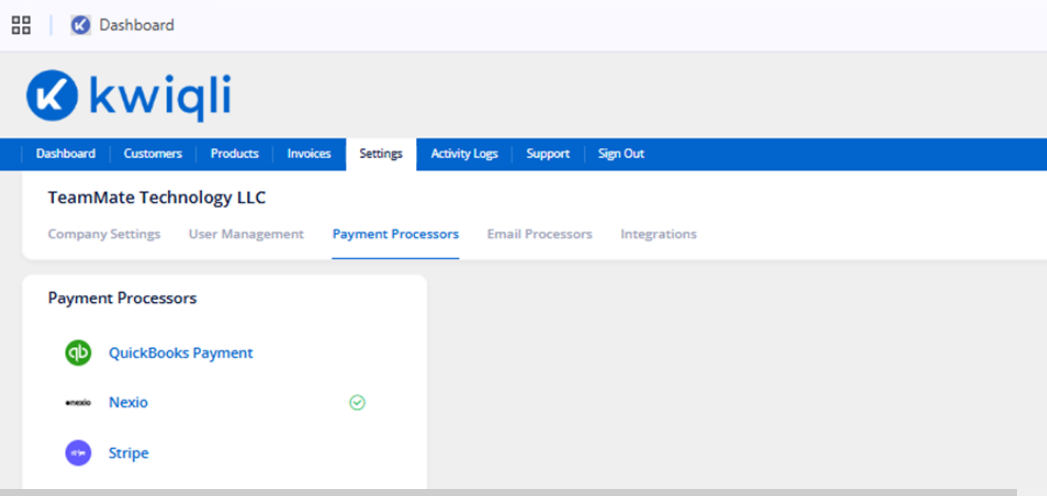
Open the Payment Processors tab.
-
Review available gateways:
-
QuickBooks Payments
-
Nexio
-
Stripe
Verify active integrations.
Functions
-
Process customer payments
-
Enable Auto-Pay
-
Configure recurring billing
Email Processors
Instructions
-
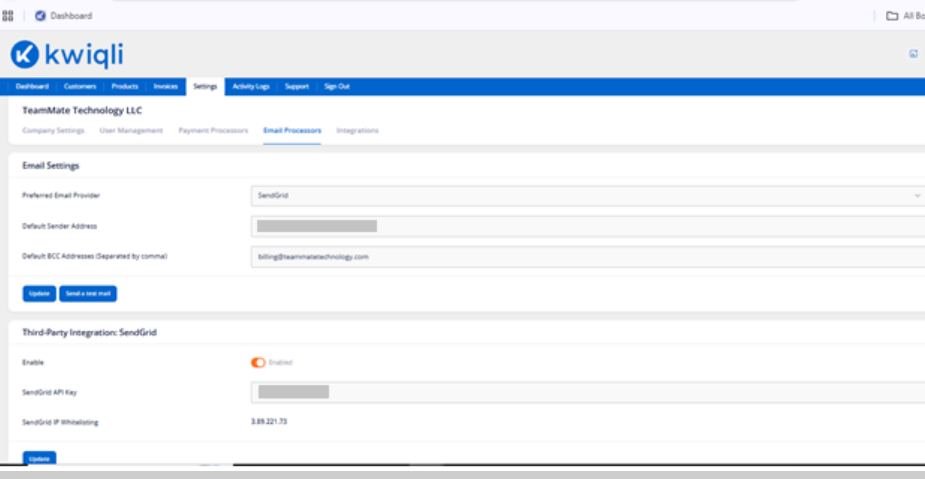
Open the Email Processors tab.
-
Configure:
-
Preferred Email Provider
-
Default Sender Address
-
BCC Addresses
Configure SendGrid API settings if applicable.
Click Update.
Use Send Test Mail to verify email delivery.
Functions
-
Send invoices
-
Deliver payment reminders
-
Manage customer notifications
Integrations
Instructions
-
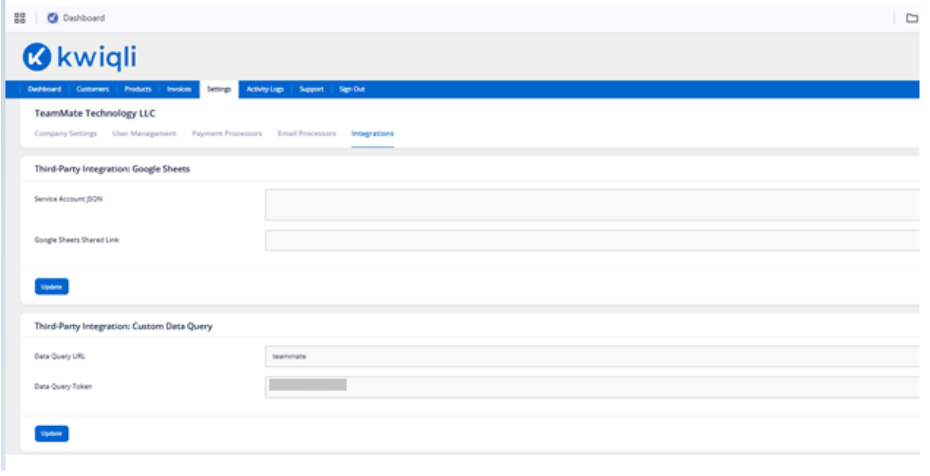
Open the Integrations tab.
-
Configure:
-
Google Sheets integration
-
Service Account JSON
-
Data Query URL
-
API Tokens
Click Update after changes.
Functions
-
Import usage data
-
Automate invoice quantities
-
Connect external billing systems